


HDMI – available in all rooms
- Power on TV
- Connect the HDMI Cable to your Device
- On the remote, select HDMI 1
Cast to the TV (available in Rooms 2B, 2D, 2E, 2F, 2G & 2I)
- Power on TV
- Press Windows K
- When this screen appears, select [LG] webOS TV UP7000PIA and press connect.
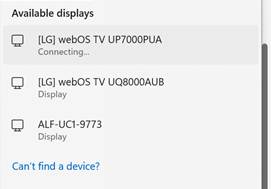
- On the remote, click the Select button to Accept the connection.
To connect use the speakerphone (available in Rooms 2I, 2B, 2D, 2G)
- Click on the Place a Call button
- Dial the phone number to connect via phone, dial the number in meeting invitation.
If your sound isn't working:
1. Click the speaker icon in the bottom right corner of the screen
2. Click on the arrow in the panel that pops up
3. Click on the input labeled "TV"
Sound should now be coming through the TV.
You can test this by changing the volume and listening for the Windows "ding".
If any of these steps failed to work, or the sound doesn't come through the TV, unplug the HDMI cable, plug it in again, and start over.
If you're using Microsoft Teams:
Microsoft Teams handles audio differently than other applications, so you may need to go through some extra steps to use the TV speakers.
1. Click the "..." icon in the top right corner of the meeting window.
2. Click on Device Settings.
3. In the sidebar that opens, change the dropdown under Speaker to be the TV speaker.
4. Close out of the sidebar.

